Key takeaways
- AI can build most of a product demo automatically: you capture your product in the browser, narrate what matters, and AI turns it into a guided, interactive demo.
- You do not need engineers, a sandbox or code access. Capture happens in Chrome, on the product you already use.
- AI handles the slow work: writing guide steps, rewriting copy for a persona, anonymizing data, restyling screens and publishing.
- A human still decides the story: which problem the demo solves, for which buyer, and what proof they need to see.
- The best AI demos come from specific prompts that name the audience, the goal and the change you want.
- Once published, an AI agent inside the demo can answer buyer questions from content you approve.
Yes, AI can build a product demo for you, and it no longer takes an engineer. You capture your product in the browser, talk through it the way you would on a call, and AI turns the screens and your narration into a step-by-step interactive demo (a clickable, self-guided walkthrough of your real product). From there, you edit it by chat instead of by hand.
That matters because buyers are not waiting for a live call. 67% of B2B buyers now prefer a rep-free buying experience, according to a Gartner sales survey published in March 2026. If the only way to see your product is to book time with a sales engineer, a large share of your buyers will never see it at all.
This guide walks through how to create a product demo with AI in five steps, from capture to share, using Walnut’s AI demo platform. It also covers what AI does well, where a human still matters, and the prompts that get the best results.
Can AI build a product demo automatically?
Mostly, yes. Modern AI demo tools can generate the guided flow, the step text, the narration and the visual polish from a single capture session. What they cannot do is decide what your demo is for.
Here is the split in practice:
- AI does: turn captured screens and narration into guide steps, write and rewrite copy, swap in personalization variables, blur or randomize sensitive data, generate new screens and images, restyle the demo and publish it with the settings you describe.
- You do: pick the workflow that proves your value, decide who the demo is for, record a clear walkthrough, and review what AI produces before buyers see it.
AI shortens the time it takes to produce a first draft. It cannot decide which story is worth telling, or why a particular buyer should care. That part still belongs to the person who knows the deal.
What do you need before you start?
You need far less than a traditional demo environment. There is no sandbox to provision, no fake data to seed and no engineering ticket to file. For Walnut, the Story Capture requirements are short:
- Google Chrome, version 114 or later. Chrome is fully supported, Microsoft Edge only partially, and other browsers are not supported.
- The Walnut Chrome extension, installed from the Chrome Web Store.
- An Admin or Editor role in your Walnut workspace.
- Microphone access in the browser, if you want to narrate.
- AI access turned on. AI features are off by default. An admin turns on Enable AI Feature Access in Company Settings, under Account Settings and AI, then saves the change.
Before you capture, set your browser zoom to 100%, exit fullscreen and pick one screen size for the whole demo. Walnut’s capture guide is direct about this: use the same screen size for all captures within a template, or you will fight layout issues later.
How to create a product demo with AI in 5 steps
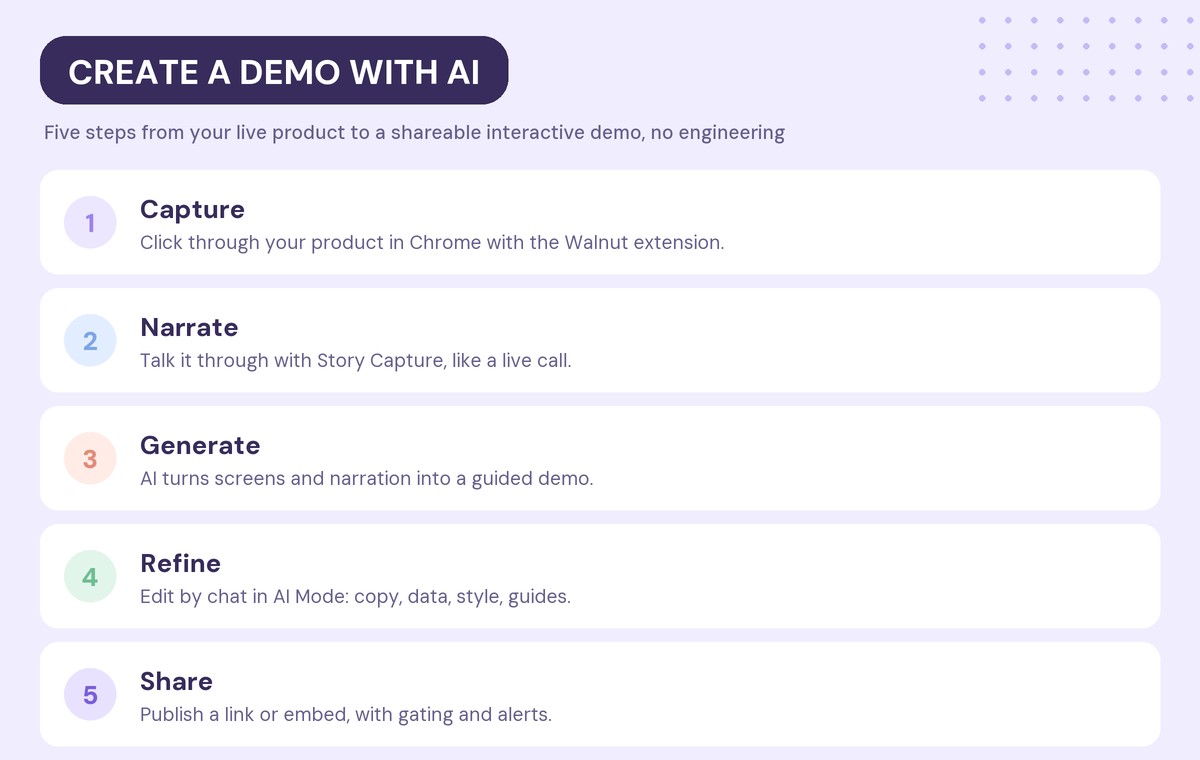
Step 1: Capture your product in the browser
Open the product you want to demo, in the account you would normally show on a call. The Walnut Chrome extension captures the live screens as you click through them, so the demo looks and behaves like your real product rather than a video or a set of screenshots.
A few things to know about what gets captured:
- Embedded video players such as YouTube, Vimeo, Wistia, Vidyard and Loom stay live in the demo.
- Charts built with supported libraries, such as Highcharts and Chart.js, stay interactive and editable. Others are captured as images.
- Table data is captured if it is in the page when you capture it.
- Animations, dropdowns and sorting that depend on JavaScript are not preserved, so capture the state you want buyers to see.
You can trigger a single capture from any tab with Ctrl + Shift + S. For a full demo with narration, use Story Capture in the next step instead.
Step 2: Narrate your walkthrough with Story Capture
Story Capture records your voice while you capture screens. It is the fastest way to give AI the context it needs, because you explain the product the same way you would on a live call.
The flow looks like this:
- Open the Walnut extension from the browser toolbar. The window refreshes and a debugger banner appears at the top. Keep it active for the whole session.
- Choose an existing template or create a new one, then click Record Story Capture.
- Allow microphone access when the browser asks.
- Click Start Recording.
- Walk through your product as you would in a live demo, talking through the key features and workflows.
- Right-click any element you want to turn into a guide step. Highlighted elements get an orange outline and show up in the guided flow.
- Click Done to end the session.
You do not need a script. Story Capture does not use your narration word for word, so pauses, restarts and rewording are fine. Talk to the buyer you have in mind, not to the recording.
Step 3: Let AI build the guided story
Open the template with Edit your template, then choose Create my story for me in the pop-up. Walnut transcribes your narration, pairs it with the captured screens and the elements you highlighted, and builds a step-by-step guided demo.
If you skipped narration, AI can still help. You can generate guides from the Guides panel at any time, and they are built from the content on your captured screens. This works for captures made in any mode, so older templates can get AI-written guides too.
Treat this first version as a strong draft. The structure and step text will be close, but you will usually want light edits so the language matches your messaging.
Step 4: Refine the demo by chat in AI Mode
This is where most of the time savings come from. AI Mode is a chat panel inside the Walnut editor. Once your template has a few screens, an AI Mode button appears in the upper-left corner of the editor. You describe what you want in plain language, and it makes the edits directly in the template.
AI Mode can:
- Rewrite copy for a persona, industry or tone, and run find and replace across every screen.
- Personalize by swapping hard-coded details for variables such as
{{company_name}}, and adding dynamic dates. - Anonymize by blurring or randomizing names, emails, addresses and logos.
- Build guides by creating flows, step titles, descriptions and annotations, or restyling the guide theme.
- Restyle screens by changing colors, fonts, spacing and alignment across the demo, and blurring sensitive content.
- Generate screens and images from a description, using up to five of your existing screens as reference.
- Edit charts and tables, including turning a static chart image into an interactive one.
Every change shows up in place, and you can refine, regenerate or discard it. Cmd + Z on Mac or Ctrl + Z on Windows undoes the most recent AI action, and deleting a chat reverts every edit tied to that prompt. For anything that cannot be undone, such as deleting screens, AI Mode asks you to confirm first.
If you only want advice, switch to Just chat. AI Mode will answer questions without changing the template.
Step 5: Publish and share
You can publish two ways. Ask AI Mode to do it, with a prompt like “Publish this demo with a 14-day expiration and email required.” Or click Create & Share Demo in the template header and set it up yourself.
The publish settings cover what most teams need:
- Demo details: a name, a goal, a connected CRM opportunity and any personalization variables.
- Access: anyone with the link, specific people or domains, an access code, or an expiration date.
- Email gating: collect viewer emails, and optionally verify them before the demo opens.
- Sharing: a direct link, embed code for your website, or a spot inside a playlist.
- Notifications: alerts to the deal owner or account owner when someone views the demo.
When you update the template later, Update Demo keeps the same link and embed code, so you never have to resend it.
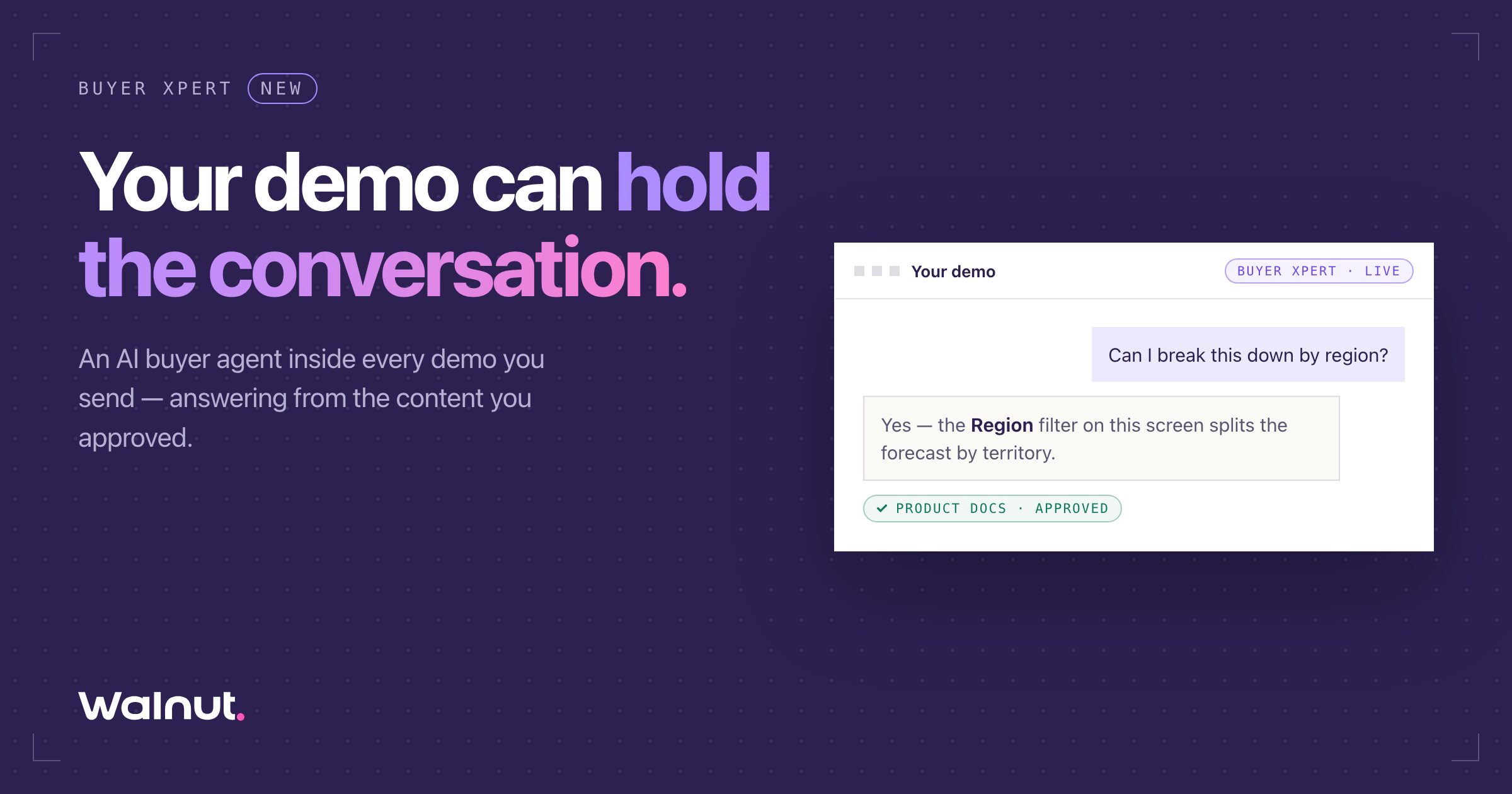
Once the demo is live, you can turn on Buyer Xpert, Walnut’s AI buyer agent. It sits inside the demo and answers buyer questions on the screen they are looking at, using only the content you approve, such as documentation, pricing and FAQs. The seller gets a briefing in the CRM with the questions asked and where the buyer hesitated.
What does AI do well, and what still needs a human?
AI is very good at the repetitive work that used to make demos expensive. It writes and rewrites step copy in seconds, applies the same change across every screen at once, removes customer data from a capture, and produces a persona-specific version without rebuilding anything.
Where AI is weaker is judgment. It does not know that your strongest proof point for a finance buyer is the forecast view, not the dashboard. It does not know that a prospect’s security lead will open the demo before the champion does. Those choices decide whether a demo moves a deal.
The practical rule: let AI build and polish, and keep a human in charge of the story and the final review. Teams that treat the AI output as a first draft get the speed without the generic result. For a wider look at how AI has changed demo tools this year, see our breakdown of AI in demo platforms in 2026.
How do you write AI prompts that produce better demos?
The quality of an AI-built demo depends heavily on the prompt. Vague requests like “make it better” produce vague edits. Specific requests produce demos you can send.
Good prompts usually include three things:
- The audience: “for a VP of Finance at a mid-market SaaS company.”
- The goal: “so they see how forecasting saves the month-end close.”
- The change: “rewrite the guide steps on screens 3 to 6 in a direct, plain tone.”
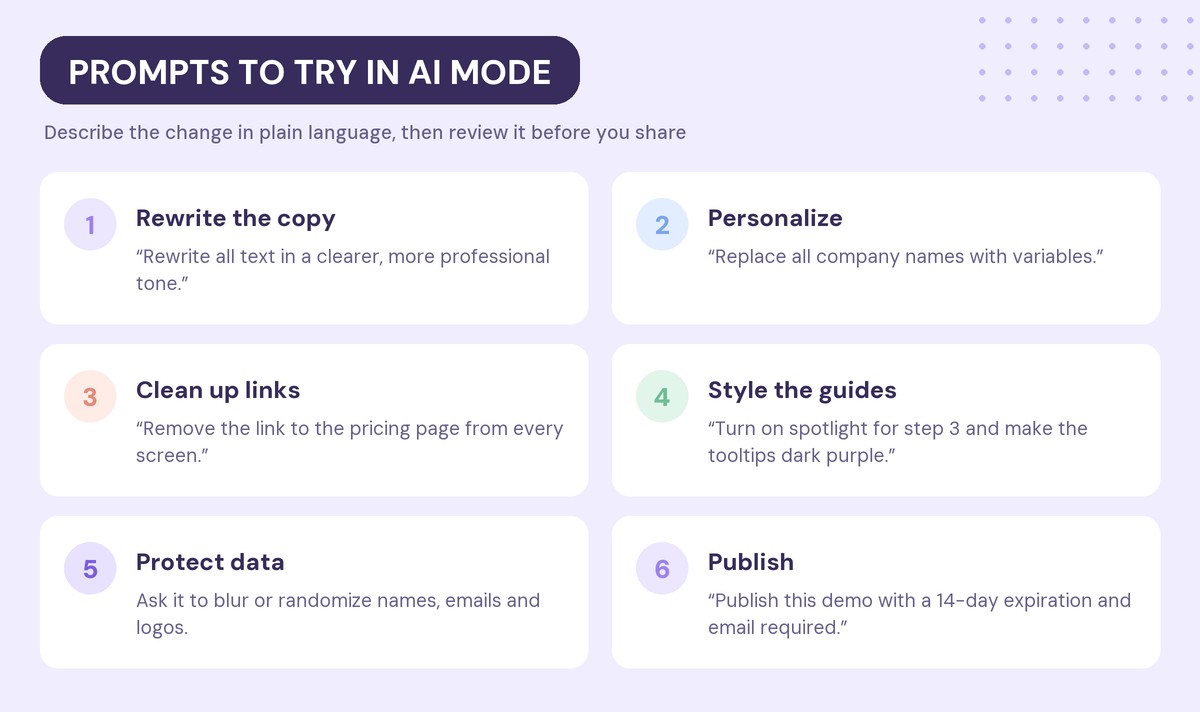
A few prompts worth trying in AI Mode, taken from Walnut’s own help center:
- “Rewrite all text in a clearer, more professional tone.”
- “Replace all company names with variables.”
- “Remove the link to the pricing page from every screen.”
- “Turn on spotlight for step 3 and make the tooltips dark purple.”
We collected more patterns in our guide on how to write AI demo prompts that work.
What are the most common mistakes when creating a demo with AI?
Most failed AI demos fail for the same few reasons, and none of them are about the AI.
- Capturing everything. A demo that covers every feature proves nothing. Capture the one or two workflows that solve the buyer’s problem.
- Mixing screen sizes. Captures taken at different sizes or zoom levels break layouts. Pick one size before you start.
- Leaving real customer data in. Ask AI Mode to anonymize names, emails and logos before you publish anything externally.
- Skipping the review. AI drafts are close, not final. Read every step as the buyer would before you share.
- Building one demo for everyone. Use variables and persona rewrites so each buyer sees a version that speaks to them. Our interactive demo best practices guide covers structure in more depth.
How do you know if your AI-built demo is working?
Publishing is not the finish line. A demo earns its place when buyers finish it, share it and come back with better questions. That means you need to look at what happens after you hit share.
Four signals tell you most of what you need to know:
- Completion: how far viewers get through the guided flow, and where they drop off. A steep drop on one step usually means that step is confusing or irrelevant.
- Sharing: whether the demo spreads inside the buying committee. New viewers from the same account are a strong sign your champion is selling for you.
- Return visits: whether the same people come back before a decision meeting.
- Questions: what buyers ask, either on the next call or through an AI agent inside the demo. Repeated questions show where the demo needs a better step.
In Walnut, deal owners and account owners can get alerts when someone views a demo, and Insights AI lets you ask in plain language how your demos and playlists are performing instead of reading a dashboard. For benchmarks on what good looks like, see our 2026 interactive demo conversion data.
Then close the loop. If buyers drop off on step five, ask AI Mode to shorten it or rewrite it for the persona who is leaving. AI makes the second version almost as cheap as the first, so iterate the way you would on a landing page.
Frequently asked questions
How long does it take to create a product demo with AI?
Capture takes about as long as walking through the workflow once, the way you would on a live call. AI then builds the guided demo from that session, and most of the remaining time goes into reviewing and refining it in AI Mode. The more focused the workflow, the faster you finish.
Can AI build a product demo automatically?
Yes. With tools like Walnut, you capture your product in the browser and narrate as you go, and AI turns the screens and narration into a step-by-step guided demo. You still choose the story and review the result, but AI does most of the building and editing.
How do I create a product demo without engineering?
Use an interactive demo platform that captures your product from the browser. With Walnut, you install the Chrome extension, capture the screens you want to show, and edit the demo by chat in AI Mode. No sandbox, code access or engineering ticket is needed.
Do I need to write a script to make an AI demo?
No. With Story Capture, you narrate your walkthrough the way you would on a live call. Walnut does not use your narration word for word, so pauses and rewording are fine, and AI turns it into guide text you can edit.
Can AI personalize a demo for each prospect?
Yes. AI Mode can replace company names and other details with variables, rewrite copy for a specific persona or industry, and adjust the demo without a rebuild. You fill in the variables when you create and share each demo.
Is it safe to use real product data in an AI-built demo?
Only after you clean it. AI Mode can blur or randomize names, emails, addresses and logos across every screen. Review the demo before you publish, and use access controls such as email gating or expiration dates for sensitive deals.
How much does an AI demo builder cost?
With Walnut, AI Mode for demos and Story Capture are included on every plan. Paid plans start with Ignite at $575 per month, billed annually, and AI Mode for Playlists starts on the Accelerate plan at $1,550 per month.
Ready to build your first AI demo this week? Start for free with Walnut.